 KISS Professional SolutionsKISS Professional Solutions
If you were able to print yesterday but not today, or scan-to-email was working and has suddenly stopped, the likely cause is a change in your network environment – not a fault with the printer itself.
In some cases, you may still be able to print but not scan-to-email. This usually points to the same underlying issue.
The change might have been intentional from a team member or your IT, accidental, or even an automatic update (from Microsoft for example). Either way, because the change is part of your network environment, you’ll need your IT or someone familiar with your network/computer setup to assist in the problem solving.
To help explain how to resolve these issues, lets first quickly understand how printing and scan-to-email works, and who is responsible for what under your service and maintenance agreement.
Think of it like sending a letter through a postal system – but digitally and almost instant.
You hit "Print" on your computer – and the print driver on your computer coverts the document into a language the printer understands
Your computer sends that file across your office network (either through a cable or Wi-Fi) to the printer.
The printer receives it and gets to work - moving paper, applying toner, and producing your document.
The key thing to understand is that your computer and printer need to be able to ‘find’ each other on the network. They do this using the printer’s IP address – think of it like the printer’s home address on your network. If the IP address changes (which is a change to your network environment), your computer can’t find it anymore, and printing fails.
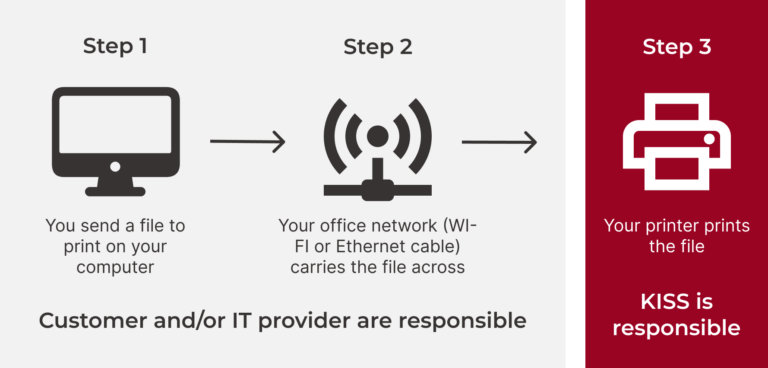

Every printer has a unique IP address on your network. If that address changes, your computer can’t find the printer.
Think of this like the reverse of the printing process, only this time your email server is needed to assist in the sending.
You place a document on/in the copier and hit “Scan”. The copier takes a photo of your document and turns it into a digital file.
The copier then tries to send that file as an email. To do this, it connects to your email server - this is called an SMTP server (basically the post office for your emails).
The email server takes the file and delivers it to whoever's email address you typed in or selected.
The copier needs to know your email server’s address, port, and login details to do this (which is part of your network environment). If any of those change – say you switch to Microsoft 365 or your IT team updates security settings – the copier can no longer connect to the post office, and your scans won’t send. They will likely bounce back – and the copier will notify you the job has failed.
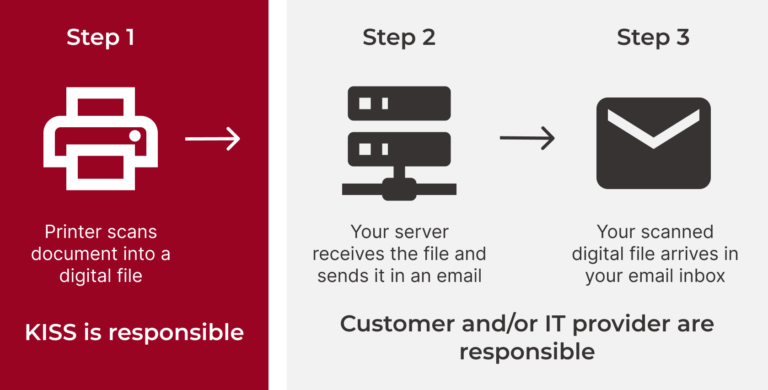
Printing needs your network, while scan-to-email needs your network and your email server. Changes to either your network and/or email server can break the chain and cause these jobs to fail – through no fault of the printer itself.
We want you printing and scanning. And we understand it’s frustrating when it doesn’t work. (We know, because it happens to us too!)
The first thing you should do to try to resolve these issues is – yep, you guessed it – the good old-fashioned turn it off & turn it on trick.
By restarting your printer and computer, you are forcing them to try and reestablish all their connections, including to your network and the email server. Sometimes this is enough to repair the kink in the chain that is preventing printing and/or scan-to-email.
If that doesn’t work, you should then ask your IT provider or in-house network wiz if they know of any changes that have been made. Common network environment changes that can affect your ability to print and/or scan-to-email include:
Changing your internet provider or modem/router
Changing your computer and/or updating software
Replacing or resetting your Wi-Fi router
Changing your network password or Wi-Fi name (SSID)
Moving to a new office or reconfiguring your network layout
Updating your server or IT infrastructure
Changing your email provider or email settings (e.g. moving to Microsoft 365)
Your IT team making changes to firewalls, IP addresses, or network security settings
If you’re still at a loss as to what’s happening, contact the KISS support team via email at support@kissps.com.au or call 1300 547 777 and we’ll have one of our technicians diagnose the issue to get you back up and running.
If the issue turns out to be caused by a change in your network environment rather than a fault with the printer itself, a remote support fee will apply. This includes things like updating print drivers, updating email servers/settings, changes to IP addresses, or updating firewall settings.
This isn’t something we do to catch anyone out – it’s simply that network and IT support falls outside the scope of your KISS service & maintenance agreement, which covers printer hardware faults. Your IT provider or internal network team is best placed to manage changes to your network, and we’d always encourage looping them in first and checking on the above possible causes.
That said, if you’re stuck and need our help, we’re always just a call away – we’ll just be upfront with you about any applicable fees before we begin.
Tooradin Primary School benefited from upgraded machines and lower costs by choosing KISS. Read the case study to find out how.
This checklist will help you identify gaps, prioritise improvements, and make sure your office, staff, and assets are well protected.

A local school integrated the portable recording studio across classrooms and events benefitting students and teachers.
"*" indicates required fields
Did you know that our website now features “Ness”, our very own ChatBot?
Ness allows you to quickly resolve all sorts of queries that you might have including:
Just go to the ‘Chat with us’ icon in the bottom right-hand corner of this site…fill in some details…quickly get the answer you need from Ness…and get on with your day!